CyfroSec delivers real-time security notifications as events happen across your infrastructure — scans completing, vulnerabilities detected, assets discovered, and more. Notifications arrive instantly via a live connection to the platform without needing to refresh the page.
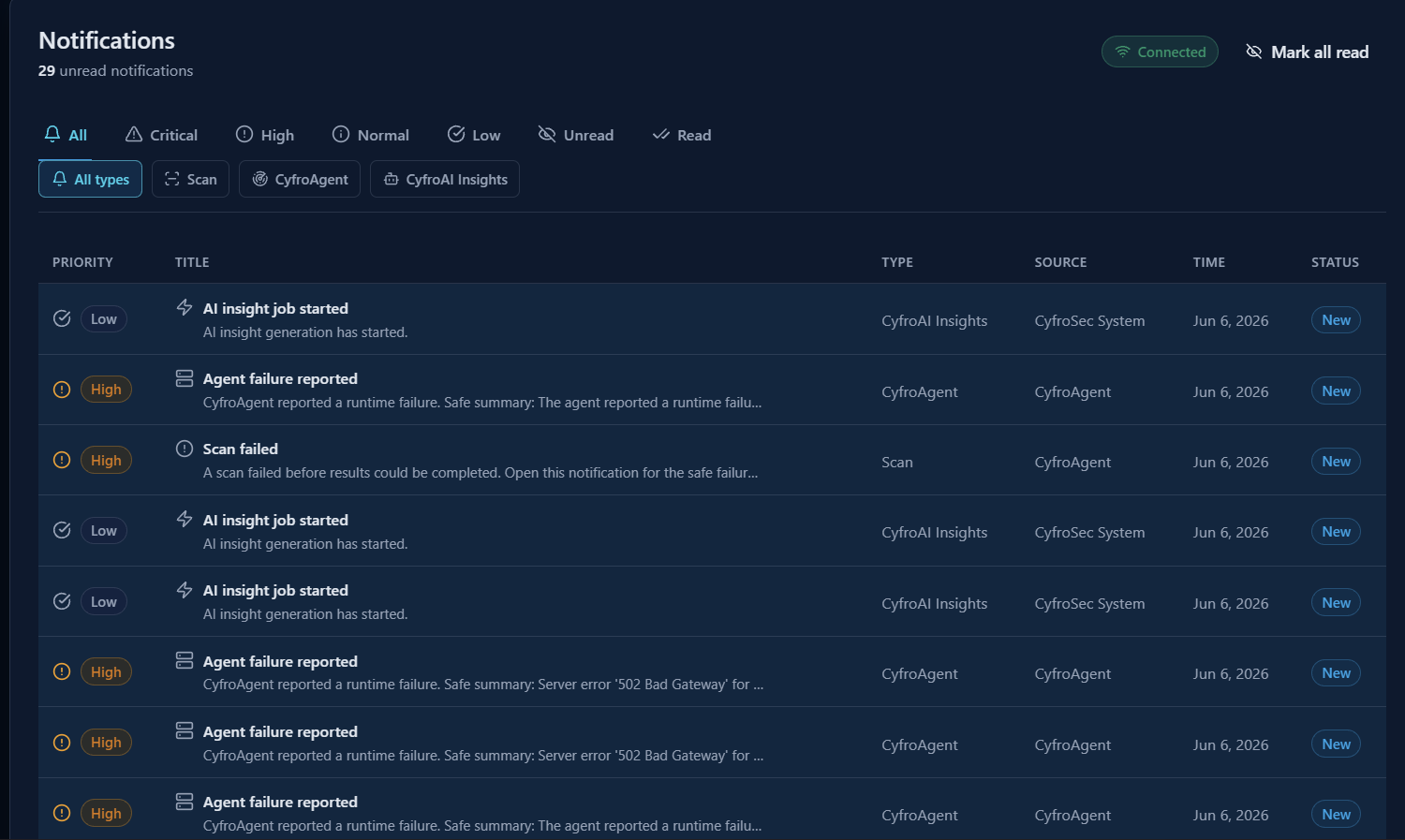 The Notifications page: priority tabs, type filters, and a live feed of security events across your account groups.
Where Notifications Appear
The bell icon in the top-right header toolbar is the primary notification indicator.
| State | Appearance |
|---|---|
| No unread notifications | Muted grey bell, no badge |
| Unread (Low/Normal priority) | Blue bell with count badge |
| Unread (High priority) | Amber bell with count badge |
| Unread (Critical priority) | Red pulsing bell with count badge |
The badge shows the number of unread notifications, capped at 99+. Click the bell to go to the full notification history page.
Toast Notifications
New notifications appear as toast cards in the top-right corner of the screen as they arrive. Up to 3 toasts are shown at once. Each toast shows:
- Priority badge (Critical / High / Normal / Low)
- Notification title and message (up to 3 lines)
- Which account group the event came from
- A 5-second countdown progress bar before auto-dismiss
- An × button to dismiss immediately
Toast notifications are ephemeral — dismissing one does not remove the notification from the history page, and auto-dismissed notifications are not automatically marked as read.
The Notifications Page
Navigate to the full history by clicking the bell icon or going to Notifications in your user menu.
Table View
The notifications table shows all notifications received in your current session with the following columns:
| Column | Description |
|---|---|
| Priority | Critical / High / Normal / Low badge |
| Title | Notification title with a type icon |
| Type | Event type (e.g., "Scan Completed") |
| Source | The account group or agent that produced the event |
| Time | Relative timestamp (e.g., "2 minutes ago") |
| Status | New (unread) or Read badge |
Click any notification row to open the notification brief for that notification and mark it as read.
Notification Brief
Clicking a notification row opens a centered modal with a short customer-facing brief:
- Priority, notification type, source, and timestamp
- A concise message describing what changed or what needs attention
- Impact, when the event affects scan completion, agent runtime health, or AI insight generation
- A recommended next step, when action is useful
- Up to 6 supporting facts such as scan name, agent name, findings count, status, source, or account group
The brief does not show raw backend codes, shard internals, resource UUIDs, provider details, or vulnerability finding payloads. Support notifications may include a View support case link. Other notification types remain informational unless a specific destination contract is approved.
Filtering
Priority tabs (above the table): Filter by All, Critical, High, Normal, or Low. Each tab shows a count of matching notifications.
Email Notifications
For certain high-priority events, CyfroSec also sends an email notification to the account group admins. Email notification delivery is configured server-side. There is no feature available currently to configure which events trigger emails.
Frequently Asked Questions on Notifications
I dismissed a toast notification but the entry is still in the notification list, is that expected? Yes. Dismissing a toast notification removes it from the toast overlay but does not delete or read the underlying notification. Navigate to the Notifications page to mark it as read or clear it.
Why does the bell show red even after I've read some notifications? The bell reflects your highest unread priority. If any Critical or High priority notification remains unread, the bell stays in that state. Use Mark all read on the Notifications page to reset it.
I'm in multiple account groups, will I see notifications from all of them? Yes. The notification system subscribes to all account groups you belong to. Each notification is labelled with the source account group so you can identify which environment it came from.