
Before you can scan code, connect your organization's GitHub account to CyfroCode and choose which repositories to sync.
Connecting GitHub
To get started with CyfroCode, you need to connect your organization's GitHub account:
- Click CyfroCode in the left sidebar to open the workspace.
- Click the Repositories tab at the top, then click Connect GitHub App.
- You will be redirected to GitHub. Authorize the CyfroSec GitHub App and select which organization to install it on.
- Choose the repositories to grant access to (all or selected), then confirm the installation.
- Return to CyfroSec. Your synced repositories appear as cards on the Repositories tab.
Note: You must be an administrator in both GitHub and CyfroSec to complete this setup.
Managing Synced Repositories
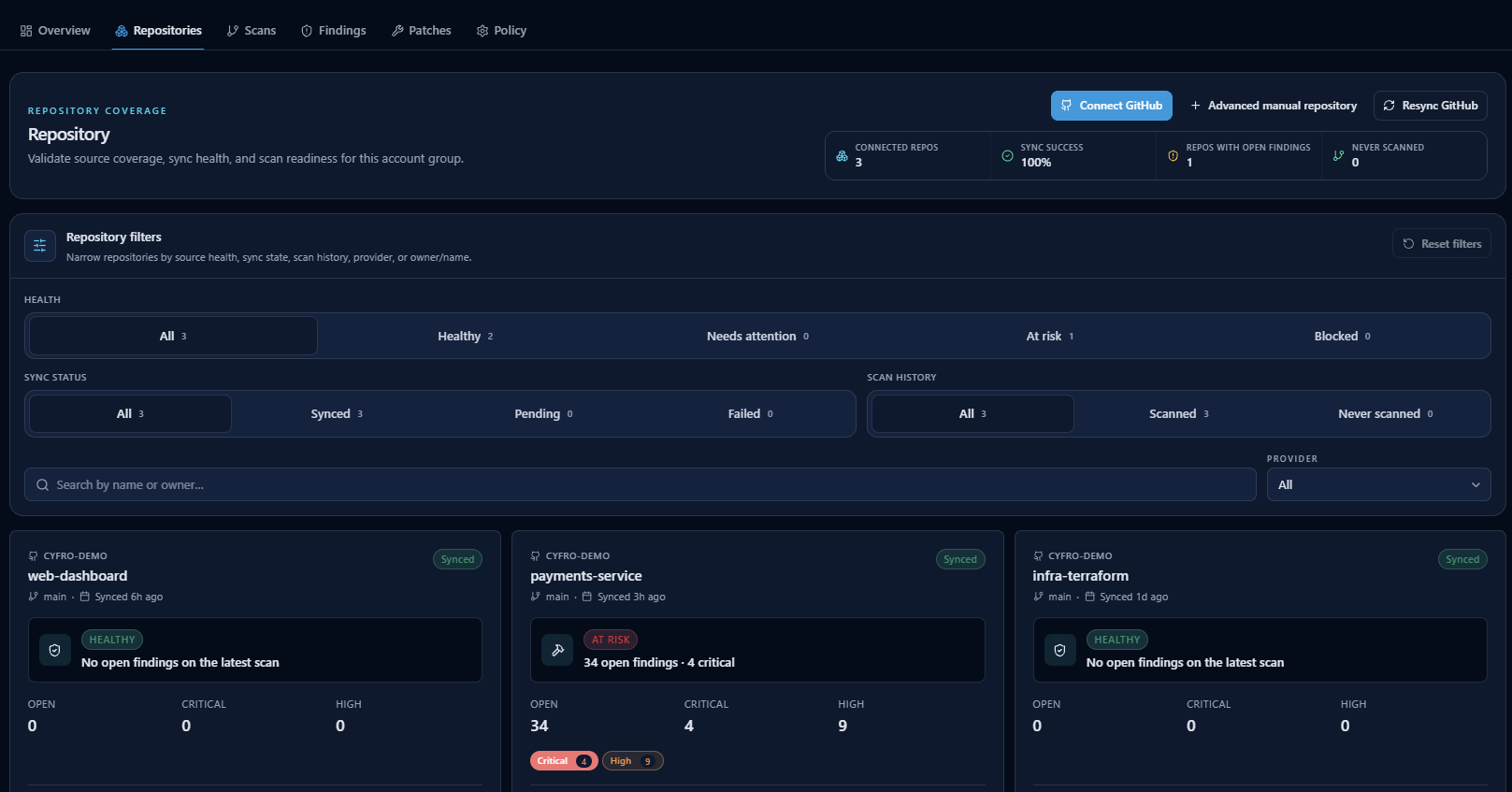 The Repositories tab: connected-repo coverage, health and sync filters, and per-repository cards with open-finding counts.
On the Repositories tab, your synced repositories are listed as cards. Each card shows:
| Field | Description |
|---|---|
| Default Branch | The primary branch monitored for changes. |
| Languages & Frameworks | Auto-detected technologies in your codebase. |
| Tech Indicators | Badges indicate if the repository uses Docker, Terraform, or GitHub Actions. |
| Sync Status | Real-time status of the connection with GitHub. |
Click a repository card to open its detail page, where you can see branch, health, sync history, and scan history.
Next: Running Scans & Scan Tabs.