Beyond SAST findings, each scan surfaces maintainability signals, a complete dependency inventory, and an architecture intent comparison.
Code Health & Dead-Code Detection
The Code Health tab surfaces signals that fall outside traditional SAST results — including dead code, duplicate code clusters, and maintenance concerns. To access it:
- Open a completed scan from the Scans tab.
- Click the Code Health tab (HeartPulse icon) in the scan detail page.
- A table of code-health signals appears, each with a signal type, severity, affected file, and description.
- Filter by signal type (dead code, duplicates, etc.) or severity (Critical, High, Medium, Low, Info).
- Search by keyword or file path to find specific signals.
- Click any signal row to open a detail drawer on the right showing the full description, affected lines, and recommended action.
What dead-code signals detect:
- Unused functions — functions that are defined but never called anywhere in the codebase.
- Unreachable code paths — branches or blocks that can never execute due to control flow.
- Orphan files — files that are never imported or referenced by other modules.
- Duplicate clusters — groups of substantially similar code blocks across different files, shown with a similarity score.
Removing dead code reduces attack surface (stale code may contain unpatched vulnerabilities), lowers maintenance overhead, and improves clarity for active development.
SBOM (Dependency Inventory)
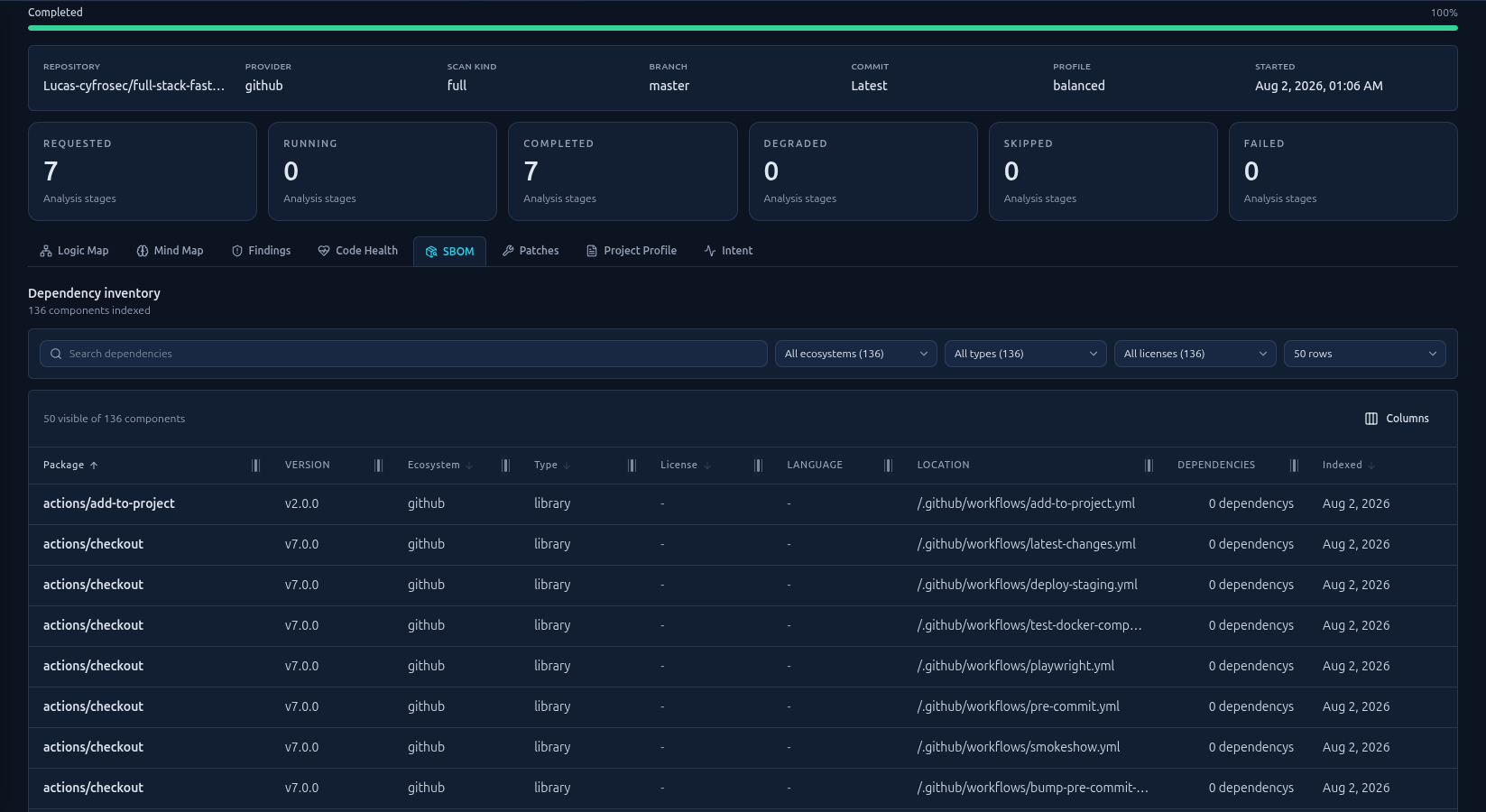 The SBOM tab: a filterable, sortable inventory of every third-party component discovered during the scan.
The SBOM tab provides a complete inventory of all third-party components discovered during the scan. To access it:
- Open a completed scan from the Scans tab.
- Click the SBOM tab (PackageSearch icon) in the scan detail page.
- A table of discovered packages appears with columns: Package, Version, Ecosystem, Type, License, Language, Location, Dependencies, and Indexed date.
- Filter by ecosystem (npm, PyPI, Maven, Go, NuGet, etc.), component type (library, framework, application), or license family.
- Search by package name using the search box.
- Click any column header to sort. Use pagination controls at the bottom (25, 50, or 100 rows per page).
If the tab shows "SBOM not requested," enable SBOM generation in the Policy tab and re-run the scan. Summary badges above the table show component counts by ecosystem and type.
Intent Analysis
The Intent tab compares the intended architecture of your repository against what the scan actually found. To access it:
- Open a completed scan from the Scans tab.
- Click the Intent tab (Activity icon) in the scan detail page.
- Three sections appear: Missing Components (should exist but weren't found), Extra Components (exist but aren't in the profile), and Boundary Violations (code crossing architectural boundaries).
- If no intent data exists, click Generate Profile to create a project profile based on the scan results.
- Review each observation and mark it as Approved (correct, track in future scans) or Rejected (false positive or intentional deviation).